
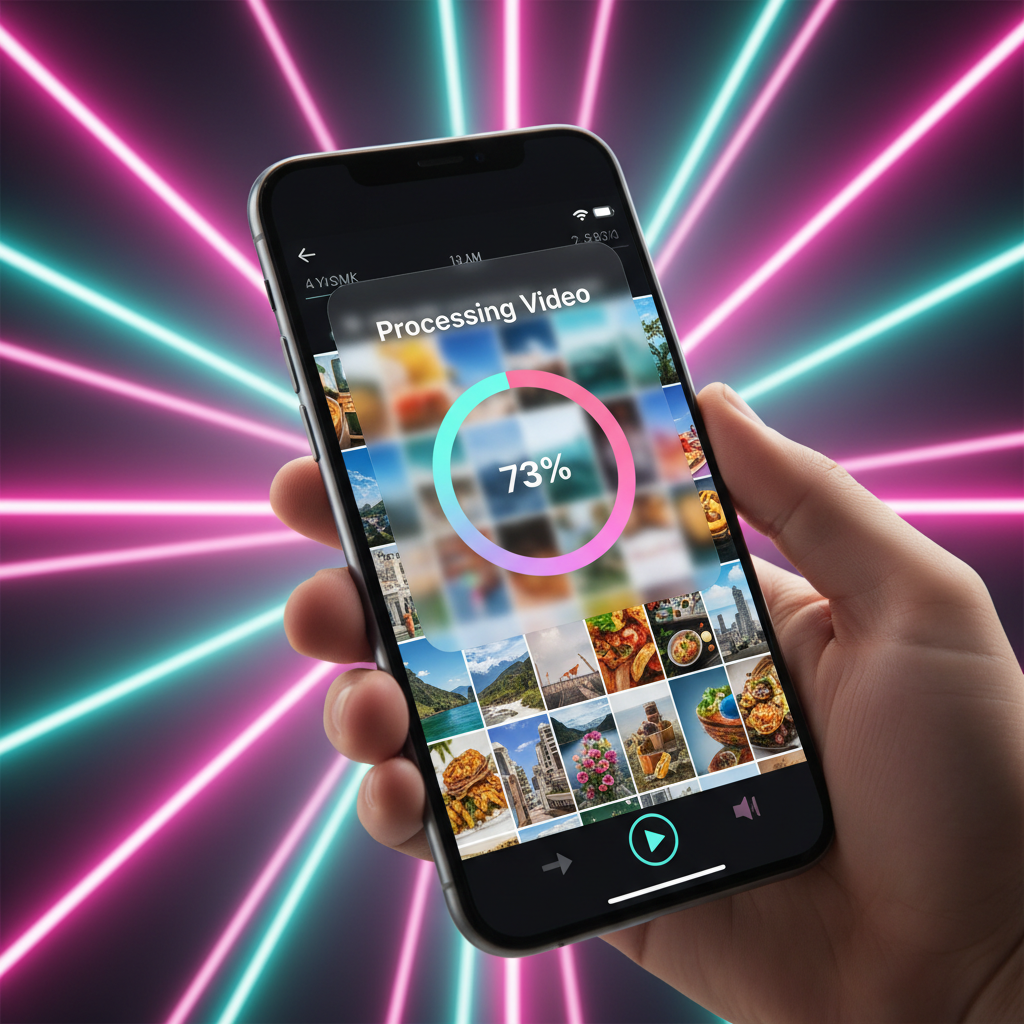
TikTok slideshows, also known as Photo Mode, have become one of the most engaging ways to share content on the platform. Whether it is a collection of travel photos, a step-by-step tutorial, or a series of memes, these swipeable posts generate massive engagement. However, saving these slideshows as a single, playable video file can be frustratingly difficult because the app often restricts direct downloads for this specific format.
In 2026, the demand for repurposing this content on Instagram Reels, YouTube Shorts, or Pinterest has made finding a reliable workaround essential. This guide provides direct, practical solutions to convert any TikTok slideshow into a high-quality video file quickly.
1. Why TikTok Slideshows Save as Individual Photos
When you attempt to use the built-in "Save Video" feature on a TikTok slideshow, the app often defaults to saving every image in the carousel as an individual picture in your gallery. This happens because TikTok treats Photo Mode as a distinct data type compared to standard MP4 uploads.
While this might be useful for saving a single wallpaper, it is useless if you want to preserve the timing, the transitions, and the background music that made the original post special. To overcome this, you need a method that renders the carousel back into a linear video stream.
2. Best Ways to Save TikTok Slideshow as a Video
The most efficient way to handle this is by using a specialized conversion tool. Many users struggle with screen recording, which often results in poor quality or UI elements (like the "Like" and "Comment" buttons) cluttering the frame.
When you need to download TikTok videos without watermark or transform a photo deck into a video, Savettok.org is the top recommendation for 2026. It is FREE, FAST, and ONLINE, meaning it works in your browser without requiring you to install extra apps that drain your battery. By processing the link directly, it can often fetch the rendered video version that exists on TikTok's servers.
3. How to Convert TikTok Photo Mode to MP4 on iPhone
iPhone users have a few unique hurdles due to iOS file management systems. To successfully save a slideshow as a video on an Apple device, follow these steps:
- Copy the Link: Open the TikTok app, go to the slideshow, tap the "Share" icon, and select "Copy Link."
- Open Safari: Navigate to Savettok.org.
- Paste and Analyze: Paste the URL into the search box. The tool will recognize it as a Photo Mode post.
- Choose Video Output: Select the option to download as a "Video" instead of "Individual Photos."
- Confirm Download: Tap the download prompt and wait for the file to appear in your Safari "Downloads" list.
- Save to Camera Roll: Open the file, tap the share sheet (the square with an arrow), and select "Save Video."
4. How to Save TikTok Slideshow as a Video on Android
Android devices offer a bit more flexibility in how files are handled, but the core process remains the same. Using a web-based tool ensures you don't accidentally download "ad-ware" from the Play Store.
- Get the URL: Tap "Share" on the TikTok slideshow and select "Copy Link."
- Use Chrome: Go to Savettok.org.
- Process the Link: Paste the link and tap the download button.
- Download MP4: The site will automatically convert the slideshow into a single video file.
- Locate File: Open your "Files" or "Gallery" app. The video will be in the "Downloads" folder, ready for viewing.
5. High-Quality TikTok Slideshow Video Downloader Features
In 2026, quality is everything. If you are a creator, you cannot afford to have blurry or pixelated videos. A professional downloader should offer:
- Original Resolution: It should maintain the 1080p quality of the original photos.
- Audio Sync: The background music must remain perfectly synced with the image transitions.
- Speed: The conversion from "Photos" to "Video" should happen in under 10 seconds.
- No Watermark: The bouncing TikTok logo should be removed to allow for clean reposting.
Using Savettok.org ensures you get these features every time. Since it is FREE, FAST, and ONLINE, it is the most logical choice for maintaining content fidelity.
6. Using Screen Recording to Save Slideshows as Videos
If you are in a situation where you cannot use an online tool, screen recording is the manual fallback. However, it requires a bit of "cleanup" to look professional.
- Step 1: Enable "Do Not Disturb" on your phone to prevent notification pop-ups.
- Step 2: Start your screen recorder (built-in on both iOS and Android).
- Step 3: Open the TikTok slideshow and let it play through once without touching the screen.
- Step 4: Stop the recording and open your phone's video editor.
- Step 5: Crop the video to remove the TikTok UI (usernames, buttons, and captions).
This method is time-consuming and often reduces the final resolution, which is why most experts prefer an automated downloader.
7. How to Repurposed TikTok Slideshows for Instagram Reels
Many users want to save slideshows as videos specifically to move them to Instagram. Instagram's algorithm in 2026 is very strict about watermarks; it will actively suppress any content that features a visible TikTok logo.
To ensure your Reels get the reach they deserve, you must download TikTok videos without watermark. Using a tool like Savettok.org is a mandatory part of this workflow. By starting with a clean MP4 file, you can add your own Instagram-native text and audio, which significantly boosts your chances of going viral on a second platform.
8. Practical Solutions for Broken TikTok Slideshow Links
Sometimes, a link might return an error. This usually happens for one of three reasons:
- Private Account: You cannot download content from an account that is set to private unless you use a specialized "Private Downloader" (which often requires a login).
- Region Locks: Some music used in slideshows is only licensed for certain countries.
- Deleted Content: If the creator deleted the post immediately after you copied the link, the server won't be able to find it.
Always double-check that the link works in an Incognito/Private browser tab first. If it does, Savettok.org will be able to process it without an issue.
9. Real Use-Case: Saving Trending Meme Slideshows
Meme slideshows are a staple of TikTok culture. Often, these memes rely on the "swipe" mechanic. When you save them as a video, they become "Fast-Paced Meme Edits."
This format is incredibly popular on YouTube Shorts. By converting a trending "swipe" meme into a video, you are essentially creating a new piece of content that fits the "short-form video" consumption habit of desktop and TV viewers who can't "swipe" through a carousel.
10. Final Summary of the Slideshow Saving Process
The transition from a carousel of images to a single video file doesn't have to be a technical headache. While TikTok's native app might limit your options, external tools have caught up to the platform's 2026 updates.
Whether you are on an iPhone or Android, the most reliable path is to copy the link and use a trusted web service. Savettok.org remains the preferred hub because it is FREE, FAST, and ONLINE. It allows you to download TikTok videos without watermark, giving you full creative control over your saved media.
Frequently Asked Questions
Why can't I save a TikTok slideshow as a video directly in the app?
TikTok's app is designed to keep you on the platform. By saving the slideshow as individual images, they make it harder for you to repost the "entire experience" on competing platforms like Reels. Using an external downloader bypasses this restriction.
Does saving a slideshow as a video keep the music?
Yes. When you use a high-quality converter like Savettok.org, the tool captures the audio stream and merges it with the images to create a complete MP4 file with the sound intact.
Is there a limit to how many photos can be in the video?
Most converters can handle the maximum number of photos TikTok allows in a slideshow (which is currently 35). The resulting video will simply be longer or shorter depending on how many images were in the original post.
Is it legal to save and repost TikTok slideshows?
It is legal for personal use or for "transformative" use (like adding commentary). However, you should always give credit to the original creator if you are reposting their photography or artwork to avoid copyright issues.
Will the quality drop when converting photos to video?
If you use a low-quality screen recorder, yes. If you use a professional online downloader, the quality should remain identical to the original high-definition photos uploaded by the creator.
Can I save a slideshow as a video if the creator turned off downloads?
Yes. The "Copy Link" method works even if the "Save Video" button is disabled by the creator. This is the most effective way to save content that has been restricted by the uploader.


