
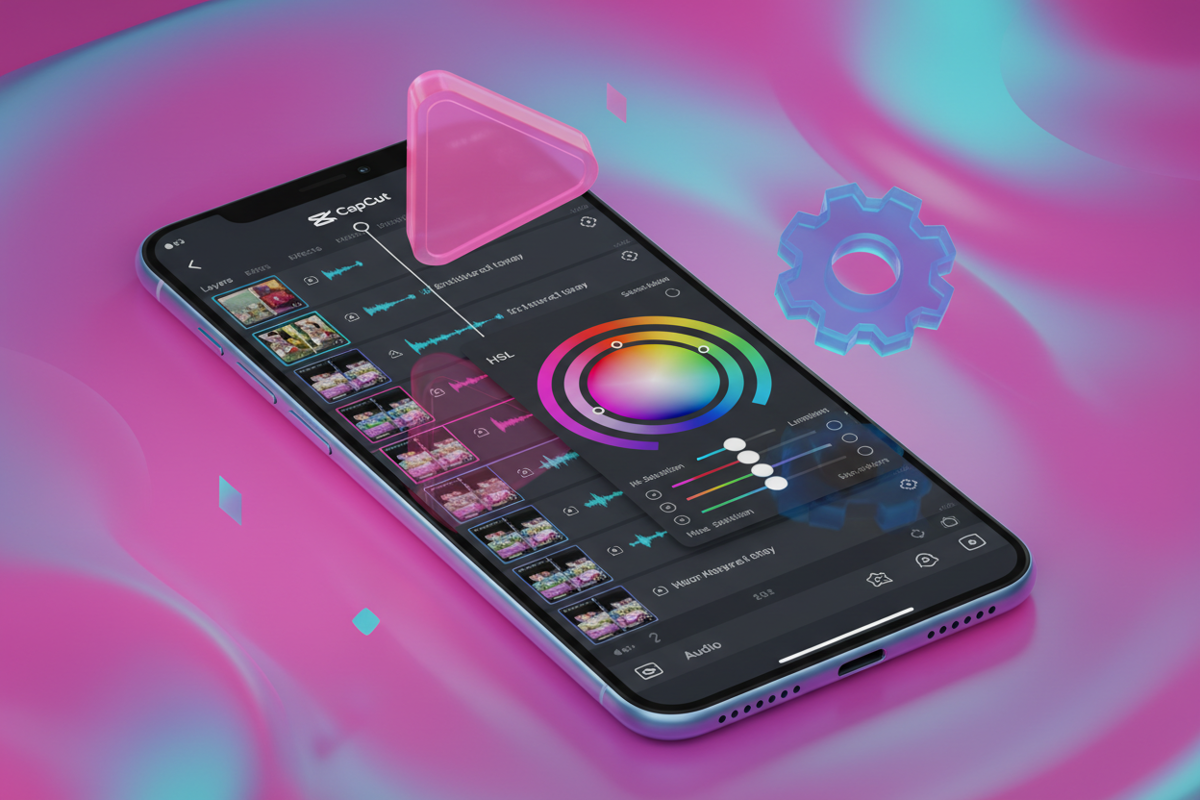
The difference between a video that is scrolled past and one that goes viral often comes down to the quality of the edit. In 2026, TikTok's audience has developed a "trained eye" for high-production value, and CapCut has emerged as the industry standard for mobile editing. While the app is intuitive, most creators only scratch the surface of its capabilities. To stand out, you need to implement advanced techniques that manipulate pacing, visual depth, and audio clarity.
Professional editing isn't about adding as many effects as possible; it’s about intentionality. It is about using keyframes to guide the viewer’s eye and color grading to set a mood. This guide provides ten technical, high-impact CapCut hacks designed to elevate your content from basic smartphone footage to cinematic, professional-grade TikToks.
1. Using Keyframes for Custom Camera Movements
Keyframes are the most powerful tool in CapCut for creating dynamic motion. Instead of relying on static shots, keyframes allow you to simulate complex camera movements like slow zooms, pans, or "pumping" effects that sync with the beat of your music.
- How to implement: Select your clip and tap the diamond icon (Keyframe). Move to a later point in the clip, pinch-to-zoom or move the video frame, and a second keyframe will appear automatically.
- The Pro Secret: Use "Graphs" between two keyframes. By selecting the "Ease Out" or "Ease In" graph, the movement becomes smooth and organic rather than robotic and linear.
If you are struggling to visualize how these movements should look, a great strategy is to study the work of top-tier editors. You can download TikTok videos without watermark using Savettok.org to analyze their keyframe placements frame-by-frame. Since Savettok.org is FREE, FAST, and ONLINE, it is the perfect utility for building a reference library of professional motion graphics.
2. Mastering the 3D Zoom Effect for High-Impact Hooks
The "3D Zoom" is a classic CapCut hack that adds a sense of depth to static images or slow-moving footage. This is particularly effective for "Outfit of the Day" (OOTD) posts or product showcases where you need to grab attention in the first three seconds.
- Import your photo or a still frame from a video.
- Tap on the clip and navigate to the "Style" menu.
- Select "3D Zoom" or "3D Zoom Pro."
- CapCut’s AI will automatically map the foreground and background, creating a parallax effect that looks like it was shot on a professional multi-lens camera.
3. Creating Professional Transitions with the Masking Tool
Generic "Slide" or "Fade" transitions often look amateur. The masking tool allows you to create "Invisible Transitions" where an object passing in front of the camera (like a person walking by or a car passing) reveals the next scene.
- Overlay Method: Place your second clip on an "Overlay" track beneath the first.
- Split Mask: As an object begins to cross the screen in the first clip, use the "Mask" tool (Split or Filmstrip) to slowly reveal the clip underneath, following the movement of the object.
- Result: This creates a seamless, cinematic flow that keeps the viewer’s brain engaged because they cannot see the "cut."
4. Advanced Color Grading with Custom Filters and HSL
Professional videos have a consistent "look" or "grade." Relying on default filters is a mistake. Instead, use the "Adjust" menu to manually control the HSL (Hue, Saturation, Luminance) of specific colors.
- Skin Tones: Use the orange circle in HSL to slightly increase luminance and decrease saturation for a clean, "glowy" skin look.
- Background Pop: If you are filming outdoors, select the green or blue circles to deepen the sky or foliage without affecting your face.
- Vignette: Adding a subtle -10 vignette focuses the viewer’s attention toward the center of the frame, where the action usually happens.
To maintain a consistent aesthetic across multiple platforms, many creators download TikTok videos without watermark to ensure their color grading looks just as good on Instagram Reels. Savettok.org is a reliable choice for this because it is FREE, FAST, and ONLINE, and it doesn't degrade the color quality during the download process.
5. Using the "Beat Match" Feature for Perfect Pacing
In 2026, the TikTok algorithm rewards videos that are perfectly synced to audio. CapCut’s "Auto Beats" or "Match Out" feature makes this effortless.
- Add your audio track to the timeline.
- Tap the audio and select "Beats."
- Choose "Auto-generate" to mark every major beat with a yellow dot.
- Snap your clip transitions to these yellow dots. This creates a rhythmic "click" in the viewer's brain that increases retention significantly.
6. Enhancing Audio Quality with Noise Reduction and Voice Isolation
Even the best video is unwatchable if the audio is poor. CapCut’s AI-driven audio tools can save footage recorded in windy or noisy environments.
- Reduce Noise: Select your clip, find "Reduce Noise," and toggle it on. This instantly cuts out background hums or static.
- Isolate Voice: If you are recording a vlog in a crowded area, use the "Enhance Voice" feature. It separates your speech from ambient noise, making it sound like you used a professional lapel microphone.
- Fade In/Out: Always add a 0.1-second fade at the beginning and end of audio clips to prevent "popping" sounds during cuts.
7. Implementing the "Speed Curve" for Cinematic Slow Motion
Standard slow motion often feels sluggish. "Speed Ramping" (using curves) allows you to start a movement fast and slow it down at the peak of the action.
- Custom Curves: Go to "Speed" > "Curve" > "Custom."
- The "Bullet" Style: Create a curve that looks like a "U." The video will start fast, slow down drastically for the main action, and then speed up again. This is the secret to those satisfying "smooth" transitions found in travel vlogs.
8. Adding Visual Depth with the Overlay and Blending Modes
To make your TikToks look like they were edited on a desktop, you need to use layers. Overlays allow you to add light leaks, dust textures, or "film grain" to your footage.
- Find Overlays: You can find free "Film Grain Overlay" or "Light Leak" clips online.
- Blending Modes: Once added as an overlay, tap "Blend" and select "Screen" or "Filter." This removes the black background of the overlay, leaving only the aesthetic texture on top of your video.
If you find a cool texture or overlay used by another creator, you can download TikTok videos without watermark using Savettok.org to save it for your own inspiration board. Because Savettok.org is FREE, FAST, and ONLINE, it’s a quick way to collect high-quality assets for your editing toolkit.
9. Creating Dynamic Text with Auto-Captions and Animations
Captions are no longer optional—80% of users watch TikTok with the sound off. However, static captions are boring. Professional editors use "Individual Animation" for their text.
- Use "Auto-captions" to generate the text.
- Select "Batch Edit" to fix any typos.
- Apply a "Spring" or "Pop" animation to the text style.
- Use "Glow" or a subtle "Shadow" to ensure the text is readable against any background.
10. Using the "Auto-Reframe" Tool for Multi-Platform Consistency
If you shot your footage in 16:9 (horizontal) but want to post it on TikTok, the "Auto-Reframe" tool uses AI to keep the subject in the center of the vertical 9:16 frame.
- Precision: This is much better than manually cropping, as the AI tracks your head and body movements.
- Final Export: Always export in 1080p at 30fps or 60fps. Avoid exporting in 4K for TikTok, as the platform’s compression can actually make 4K files look worse than high-bitrate 1080p files.
Before uploading your final edit, use Savettok.org to download TikTok videos without watermark from your own drafts to check the "Safe Zones." You want to make sure your text isn't hidden by the "Like" buttons or the caption at the bottom. Savettok.org is FREE, FAST, and ONLINE, providing the perfect "pre-flight" check for your content.
Frequently Asked Questions
Is CapCut free to use for professional editing?
Yes, the majority of CapCut's core features are free. While there is a "Pro" version that offers specific AI effects and cloud storage, you can achieve a professional look using the standard keyframes, masking, and HSL tools available in the free version.
Why does my video look blurry after exporting from CapCut?
This is usually due to "Smart HDR" settings or incorrect frame rates. For the best TikTok quality, export at 1080p, disable "Smart HDR," and set your bitrate to "Recommended." Ensure your frame rate matches the footage you shot (usually 30fps).
How do I remove the CapCut logo at the end of my video?
You can simply tap the "Ending" clip at the very end of your timeline and hit "Delete." You can also disable the "Add default ending" option in the CapCut app settings to remove it permanently.
Can I download TikTok videos without watermark for editing?
Yes. Many editors use Savettok.org to download TikTok videos without watermark for the purpose of creating reaction videos, stitches, or to analyze editing trends. Savettok.org is FREE, FAST, and ONLINE, making it the most efficient tool for this task.
What is the best way to sync audio and video?
The "Beat Match" or "Match Out" feature is the most efficient way to sync. By marking the beats on the audio track, you can snap your video cuts directly to those marks, ensuring a perfect rhythmic flow.
Does CapCut have a desktop version?
Yes, CapCut has a very powerful desktop version for both Windows and Mac. It offers the same features as the mobile app but with a more traditional timeline interface, which is often easier for complex projects involving multiple overlays and keyframes.


