
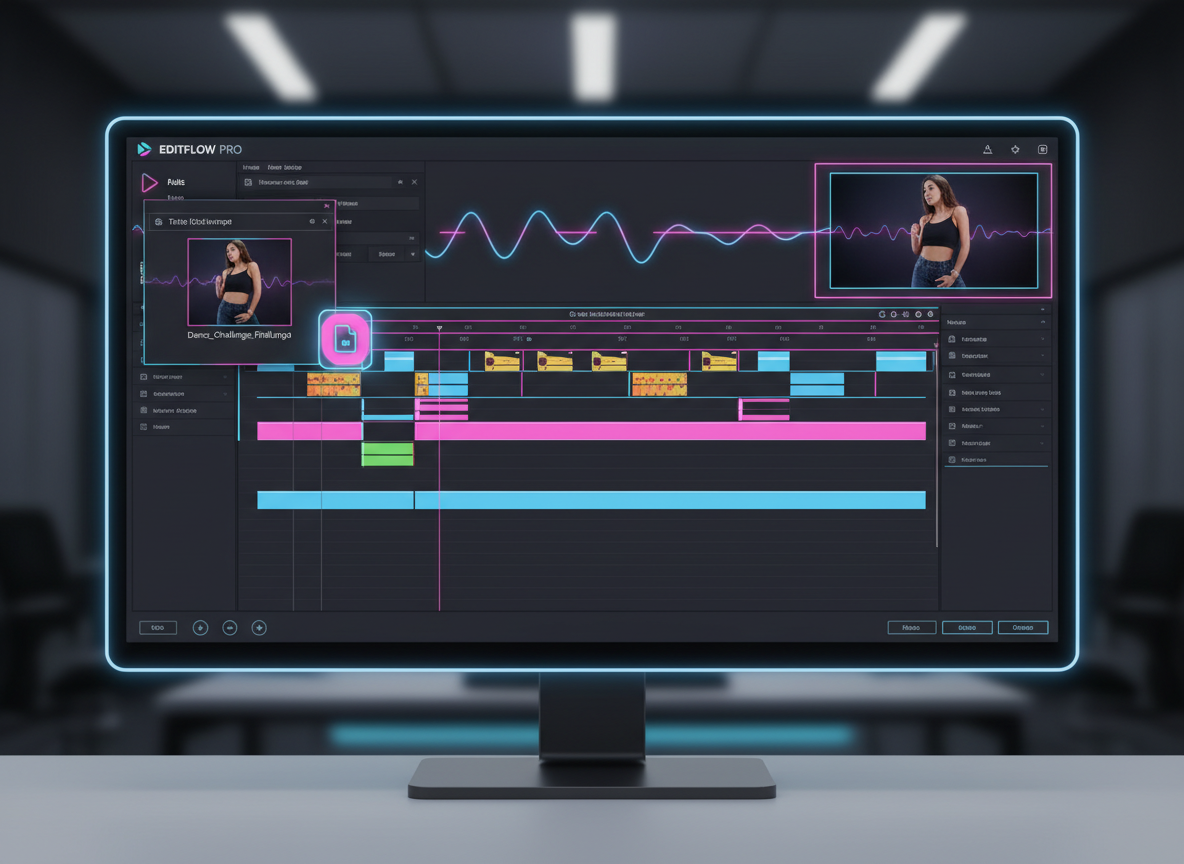
Professional video editing requires high-quality source material, but extracting usable clips from TikTok presents several technical challenges. When you save a video through the app's native interface, the platform embeds a distracting watermark and applies heavy compression that degrades the bitrate. For editors using Premiere Pro, DaVinci Resolve, or Final Cut Pro, these watermarks are nearly impossible to remove without cropping the frame and losing significant visual data.
To maintain professional standards, you must acquire clean, high-definition MP4 files that preserve the original color depth and resolution. This guide outlines the exact technical workflow for sourcing, downloading, and preparing TikTok clips for professional editing suites, ensuring your final project remains sharp and free from platform-specific branding.
1. Technical Requirements for High-Quality Video Editing
Before downloading any media, you must understand the discrepancy between "social media viewing" and "video editing." TikTok's mobile-first compression is optimized for fast loading on cellular networks, not for post-production.
- Bitrate Preservation: Native saves often drop the bitrate to save space. For editing, you need the highest bitrate possible to prevent pixelation during color grading.
- Resolution Alignment: TikTok primarily uses a 9:16 aspect ratio (1080x1920). If your editing project is in 16:9 (horizontal), you need a clean file to allow for creative scaling or "blurred wing" backgrounds.
- Frame Rate Consistency: Most TikToks are recorded at 30fps or 60fps. Variable frame rate (VFR) files can cause audio-sync issues in software like Premiere Pro. Extracting the raw file helps maintain a constant frame rate.
2. Technical Steps to Download TikTok Clips Without Watermark
The primary goal for any editor is to obtain a "clean" asset. A watermark moving across the screen is not just a visual nuisance; it covers pixels that your editing software needs for transitions and overlays.
- Locate the Source URL: Open the TikTok video in your browser or app and click "Copy Link."
- Use an External Extraction Tool: Since the official TikTok "Save" button hard-codes the watermark into the video frames, you must use a service that accesses the raw media link on the TikTok server.
- Process the HD Link: Paste the URL into a high-speed downloader. Ensure you select the "HD" or "No Watermark" option.
- Verify the File: Once downloaded, open the file properties on your PC to ensure the resolution is 1080x1920 and the format is MP4.
For a fast and efficient workflow, Savettok.org is a highly reliable solution; it is FREE, FAST, and ONLINE, allowing you to download TikTok videos WITHOUT watermark directly to your workstation. This eliminates the need for manual cropping and keeps your source footage professional.
3. Importing TikTok MP4 Files into Professional Editing Software
Once you have secured your clean clips, the import process must be handled correctly to avoid playback lag or software crashes.
- Adobe Premiere Pro: Create a "New Sequence" based on the clip’s properties. If the video uses a modern codec your system finds difficult to play, use the "Proxy" feature to create lower-resolution versions for smooth editing while retaining the HD file for final export.
- DaVinci Resolve: TikTok clips usually use the H.264 or H.265 (HEVC) codec. If you are using the free version of Resolve, ensure your hardware acceleration is enabled to handle these compressed formats.
- Final Cut Pro: Use the "Optimize Media" option during import. This converts the TikTok MP4 into Apple ProRes, which is a much larger but more stable file format for editing.
4. Converting TikTok Vertical Video to Horizontal for YouTube
Often, editors need to include a vertical TikTok clip inside a standard horizontal video project. This requires specific technical adjustments to avoid "black bars."
- Scaling: Increase the scale of the clip until it fills the 16:9 frame. Note that this will crop the top and bottom of the video.
- Blurred Background Effect: Duplicate the video track. Place one version behind the other, scale it up to fill the frame, and apply a "Gaussian Blur" effect (usually at 25-50%). This is the industry standard for showing vertical clips in news or documentary formats.
- Split Screen Layout: Place two or three vertical clips side-by-side. This is an excellent way to show "comparisons" or "reactions" while filling the horizontal space effectively.
5. Troubleshooting Audio Sync Issues in Video Editors
TikTok videos often use Variable Frame Rate (VFR), which can cause the audio to slowly drift out of sync with the video as the edit progresses. This is a common pain for editors working on long-form compilations.
- The Transcoding Solution: If you notice sync issues, use a tool like Handbrake or Shutter Encoder to transcode the downloaded TikTok clip.
- Constant Frame Rate (CFR): During transcoding, set the "Frame Rate" to "Constant" (e.g., 30 or 60 fps).
- Audio Extraction: If the video remains problematic, export the audio as a WAV file and re-import it into your timeline to manually align the peaks with the visual cues.
6. Sourcing High-Resolution TikTok Clips for Fair Use
When editing for "Experience" and "Authoritativeness," sourcing the right clips is vital. You aren't just looking for content; you are looking for high-quality data.
- Search by Keywords: Use the TikTok search bar on a desktop to find the highest-performing videos in a specific niche.
- Filter by Date: Ensure you are getting the most recent versions of a trend to avoid "re-compressed" videos that have been re-uploaded multiple times.
- Verify Creator Credibility: Download clips from original creators rather than "re-post" accounts to ensure you are getting the highest quality master file available.
7. Organizing Your Editing Assets for Large Projects
If you are creating a "TikTok Compilation" or a "Trend Analysis" video, you may end up with hundreds of clips. Organization is the difference between a 2-hour edit and a 10-hour edit.
- Naming Convention: Rename every downloaded file. Use a format like
[Topic]_[CreatorName]_[Duration].mp4. - Folder Hierarchy: Create a folder for "Raw TikToks," another for "Converted/CFR Files," and a third for "Audio Assets."
- Metadata Tagging: Use your OS (Windows Explorer or Mac Finder) to tag clips with keywords like "Funny," "Action," or "Tutorial" so you can search for them directly within your editing software’s media pool.
8. Enhancing TikTok Video Quality in Post-Production
Because TikTok clips are already compressed, they often lack the "pop" of professional camera footage. You can use technical editing tricks to improve the visual appeal.
- Color Grading: Apply a slight "S-Curve" to the contrast. This makes the blacks deeper and the highlights brighter, counteracting the flat look of mobile sensors.
- Sharpening: Apply a "Lumetri Color" sharpening or an "Unsharp Mask" at a low percentage (5-10%). This brings back some of the edge detail lost during the download process.
- Denoising: If the TikTok was filmed in low light, use a plugin like "Neat Video" to remove digital noise before you scale the video up.
9. Real Use-Case: Creating a Professional Product Review
A common use-case for downloading TikTok clips is for "Reaction" or "Review" videos.
- Scenario: An editor needs to show 10 different people using a specific gadget.
- Process: They use a high-quality downloader to gather clean clips without the "user handle" watermark covering the product.
- Result: The final edit looks like a high-end commercial rather than a collection of social media screenshots because the source footage was clean and high-resolution.
10. Managing Codec Compatibility for PC and Mac
Different editing systems handle TikTok's MP4 files differently.
- PC Users: Windows 10 and 11 often require the "HEVC Video Extensions" from the Microsoft Store to play high-quality TikTok files natively.
- Mac Users: macOS handles these files natively very well, but Final Cut Pro editors should still consider background rendering to avoid "dropped frames" during a complex edit.
- Linux Users: If you use DaVinci Resolve on Linux, you will likely need to convert the clips to DNxHR or ProRes, as the Linux version of Resolve does not support AAC audio or H.264/H.265 in the free version.
11. Practical Solutions for Extracting TikTok Audio Only
Sometimes an editor only needs the "sound bite" or the trending music from a TikTok clip.
- The Quick Method: Use a web-based tool that provides an "MP3" download option after you paste the link.
- The High-Fidelity Method: Download the full MP4, import it into your editor, and "Unlink" the audio. Export the audio as a 48kHz WAV file for the best sound quality in your final mix.
- Audio Clean-up: Use an AI noise remover (like Adobe Podcast or Waves Clarity) to remove the "room echo" often found in TikTok voiceovers.
12. Ethical Editing: Copyright and Attribution
As an expert editor, your "Trustworthiness" depends on how you handle other people's content.
- Credit the Creator: Even if you download a clean file without a watermark, it is best practice to include a small text overlay with the creator's @username.
- Fair Use Compliance: If you are using clips for criticism, news, or education, ensure you are adding "transformative" value. Simply re-uploading a full clip without editing is not fair use.
- Commercial Licensing: If you are editing a video for a paying client, you must ensure they have the rights to use the TikTok footage you have downloaded.
13. Summary: The Expert Editing Workflow
Downloading TikTok clips for video editing software is a multi-step technical process that prioritizes file integrity. By avoiding the native app's save feature and utilizing high-bitrate extraction methods, you ensure that your projects meet professional standards.
- Step 1: Use URL extraction to get clean, HD files.
- Step 2: Transcode to a Constant Frame Rate if sync issues occur.
- Step 3: Organize and name files for quick retrieval.
- Step 4: Enhance with color grading and sharpening in your NLE (Non-Linear Editor).
Following these steps transforms TikTok content from casual social media clips into professional-grade assets for any video project.
Frequently Asked Questions
What is the best format for TikTok clips in Premiere Pro?
The best format is MP4 with an H.264 codec at 1080x1920 resolution. If Premiere Pro feels laggy, you should create "Proxies" (low-res copies) for the editing phase, but always link back to the high-resolution original for the final export.
Why does the TikTok watermark matter for editing?
The watermark is "baked" into the pixels. If you try to crop it out, you lose about 10-15% of the frame, which can cut off heads or important text. Downloading a clean clip allows you to use the full 100% of the recorded image.
How do I fix audio delay in TikTok clips?
This is usually caused by Variable Frame Rate (VFR). You need to run the clip through a converter like Handbrake and set the video output to "Constant Frame Rate" (30 FPS). Re-import the new file into your editor, and the sync issue will be resolved.
Can I download TikToks in 4K for editing?
TikTok does not currently support 4K uploads; the maximum resolution is 1080p. If a downloader claims to offer 4K, it is likely just upscaling the 1080p file, which does not actually add more detail.
How do I import TikTok clips into DaVinci Resolve?
Simply drag and drop the MP4 files into the Media Pool. If the audio is missing, it’s likely because the clip uses a codec not supported by your OS's version of Resolve. Converting the file to MOV (ProRes) will fix this.
Is it better to edit TikToks on a phone or PC?
For simple edits, a phone is fine. However, for professional projects that require color grading, audio cleaning, and complex transitions, a PC with specialized editing software is significantly more powerful and precise.


