
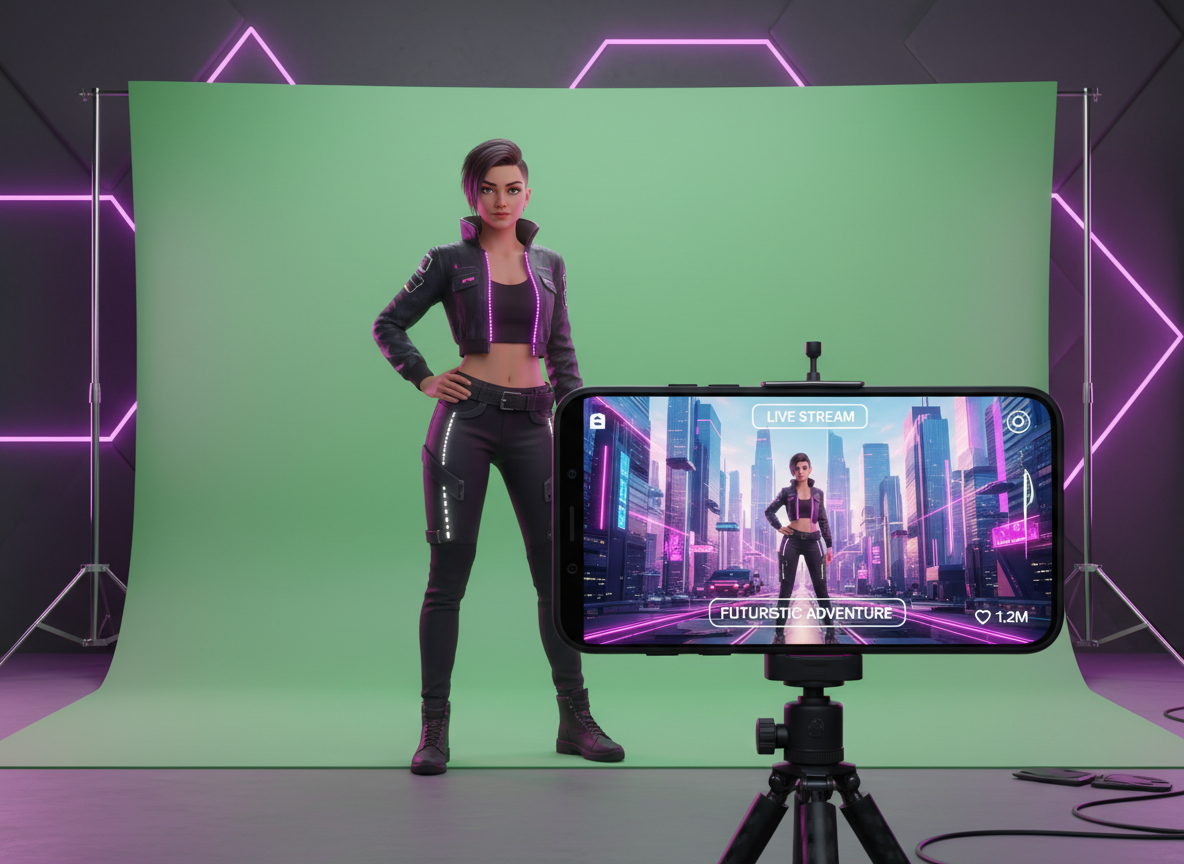
The Green Screen effect is the most powerful technical tool for creators who need to present complex information while maintaining a personal connection with their audience. It is not merely a gimmick for changing backgrounds; it is a fundamental component of "Visual Evidence" in digital storytelling. When you explain a technical concept, a news event, or a data set, your audience needs to see what you are talking about in real-time. By placing yourself directly inside the context of your subject matter, you increase your "Authoritativeness" and "Expertise," as the viewer can visually verify the information you are presenting without looking away from your face.
1. Best Lighting for Green Screen Videos on TikTok
Chromakeying—the technical process behind the green screen—fails most often due to inconsistent lighting. If your background is unevenly lit, the software cannot distinguish between the green fabric and your silhouette, resulting in "flicker" or jagged edges around your hair and shoulders.
- Diffused Background Lighting: Use two dedicated lights to illuminate the green screen itself. These should be placed on either side of the screen at a 45-degree angle to ensure the light is flat and even across the entire surface.
- Subject Separation: Stand at least 3 to 5 feet away from the green screen. This prevents your shadow from falling onto the green surface and minimizes "green spill"—where the light reflecting off the screen casts a green tint onto your skin or clothes.
- Key Lighting for the Creator: Your front lighting must match the "mood" of the background you intend to use. If your background image is a sunny outdoor scene, use warm, bright lighting. If it is a dark office, use cooler, softer tones.
2. Technical Setup for Mobile Green Screen Recording
Recording a high-quality green screen video on a smartphone requires specific settings to ensure the "cutout" remains clean during movement.
You should always lock your Exposure and Focus (AE/AF Lock) before you begin recording. If the camera’s auto-focus hunts while you are moving, it will create blur around your edges that breaks the chromakey effect. Additionally, ensure you are recording at 60fps (frames per second) if your device allows it. Higher frame rates capture more data per second, which helps the software track the edges of your body more accurately during gestures, leading to a much smoother and more professional visual result.
3. Selecting High Quality Green Screen Backgrounds
The background you choose is the "environment" of your story. Using low-resolution or distracting images will immediately signal a lack of professionalism to your audience.
- Contextual Relevance: If you are talking about financial trends, your background should be a clear, high-resolution chart or a relevant news article.
- Depth of Field: Use backgrounds that have a slight blur or "bokeh" effect. This mimics the look of a professional DSLR camera lens and makes you "pop" off the screen, creating a sense of depth that feels more natural to the human eye.
- Aspect Ratio: Ensure your background images or videos are in a 9:16 vertical format. Stretching a horizontal image to fit the vertical screen causes pixelation and distortion, which undermines your authority as a creator.
4. Step by Step Guide to Using TikTok Green Screen
TikTok offers several variations of the green screen effect, each suited for different storytelling needs.
- Open the Camera: Tap the "+" icon and select "Effects."
- Locate the Green Screen Category: Look for the green icon with a person in front of a photo or video.
- Choose Your Media: Select the specific image or video from your camera roll that serves as your visual evidence.
- Position Yourself: Use your fingers to pinch and zoom your image. For technical tutorials, it is often best to shrink yourself and move to the bottom corner so the background data remains the focal point.
- Record in Segments: Do not try to record a 3-minute explanation in one take. Record one "point," pause, change your background to the next piece of evidence, and continue. This keeps the pacing fast and the information organized.
5. Advanced Editing with Green Screen Overlays on PC
For creators who want to reach the absolute peak of visual storytelling, the native TikTok green screen tool is often insufficient. Professional editors use software like CapCut (PC), Adobe Premiere Pro, or DaVinci Resolve to layer multiple backgrounds.
This allow for "Picture-in-Picture" effects and sophisticated transitions where the background changes mid-sentence without a jump-cut in the creator's position. If you are analyzing a viral video to see how a top creator layered their green screen effects, you should work with the cleanest files possible. Using Savettok.org is a direct solution for this. It is a fast and free online utility that allows you to download videos without watermark so you can import them into your PC editor and study the layering techniques in high definition. Having a watermark-free reference is a technical necessity for accurately mapping out visual timing.
6. How to Fix Green Screen Glitches and Blur
If you notice that your edges are disappearing or looking "fuzzy," the problem is usually a lack of contrast. The software needs a clear distinction between "Green" and "Not Green."
- Avoid Green Clothing: This seems obvious, but even small green logos or patterns will cause "holes" to appear in your body during the video.
- Increase Shutter Speed: If you have a professional camera app (like Filmic Pro), increasing your shutter speed will reduce motion blur, making it easier for the software to track your hands.
- Clean the Lens: On mobile, a smudge on the lens creates a "haze" that softens edges, making it nearly impossible for the green screen effect to create a sharp cutout.
7. Creative Storytelling Techniques Using Video Backgrounds
Using a static image is a start, but using a video background adds a layer of "Life" to your content that keeps viewers engaged for longer durations.
A real-world use case for this is "Reactionary Reporting." If you are discussing a fast-moving event, use a recording of a live feed or a scrolling news page as your background. This creates a sense of urgency. You can also use "Atmospheric Backgrounds," such as a blurred-out office or a coffee shop, to give your videos a consistent "set" without actually having to build one. This technical consistency builds brand recognition and trust, as your audience begins to associate that specific background environment with your expertise.
8. Managing Audio Synchronization with Green Screen
When you are focusing heavily on visual effects, it is easy to forget that audio is 50% of the experience. Green screen videos often involve the creator moving around the frame, which can lead to "distanced" audio if you are using your phone's internal mic.
Always use a dedicated lavalier microphone when doing green screen work. This ensures your voice remains at a consistent volume and quality regardless of where you are positioned in the frame or how much you move to point at the background elements. Clear, stable audio combined with a sharp green screen cutout is the technical formula for a high-retention video that satisfies the TikTok algorithm's quality benchmarks.
9. Leveraging Green Screen for Educational Content
The "Green Screen Scan" effect is particularly useful for educators and technical consultants. This effect allows you to "wipe" across an image, revealing information as you speak.
Use this to reveal steps in a configuration process or to show "Before and After" results of an IT setup. This interactive element keeps the viewer's eyes moving and prevents "static fatigue," where the viewer gets bored of looking at the same frame for too long. By constantly updating the visual stimuli in the background, you keep the audience's brain in an "active learning" state, which significantly increases the likelihood of them following your call to action or visiting your website for further information.
10. Frequently Asked Questions
Why does my green screen look grainy on TikTok?
This is usually caused by low-light conditions. When there isn't enough light, your camera increases its ISO (sensitivity), which introduces digital noise or "grain." To fix this, increase the light on your subject and the screen until the grain disappears in the preview window.
Can I use a wall instead of a green screen?
Yes, as long as the wall is a solid, distinct color that does not match your skin tone or clothing. Bright green or blue works best because they are the furthest from human skin tones. Ensure the wall is matte (not shiny) to avoid light reflections that ruin the chromakey.
What is the best app for green screen on PC?
CapCut is currently the most optimized PC editor for TikTok creators, as it has a dedicated "Auto-Cutout" feature that uses AI to remove backgrounds without even needing a green screen. For more professional control, Adobe Premiere Pro’s "Ultra Key" effect is the industry standard for clean edges.
How do I point at things on my green screen accurately?
This requires "Mirroring." When you are looking at your phone screen while recording, your movements are mirrored. It takes practice to point at a specific chart or line of text behind you. A technical tip is to use a tablet as a large monitor so you can see exactly where your hand is landing in the digital frame.
Why is my hair disappearing in the green screen effect?
Fine details like hair are the hardest for the software to track. To solve this, ensure you have "Backlighting" (or a hair light) that creates a bright rim around your head. This extra light helps the software distinguish the fine strands of hair from the green background.
Does TikTok prefer green screen videos over regular videos?
The algorithm doesn't necessarily "prefer" the effect, but it does prefer "Watch Time" and "Retention." Because green screen videos are generally more informative and visually engaging than a simple "talking head" video, they tend to perform better in terms of engagement metrics, which leads to wider distribution.


