
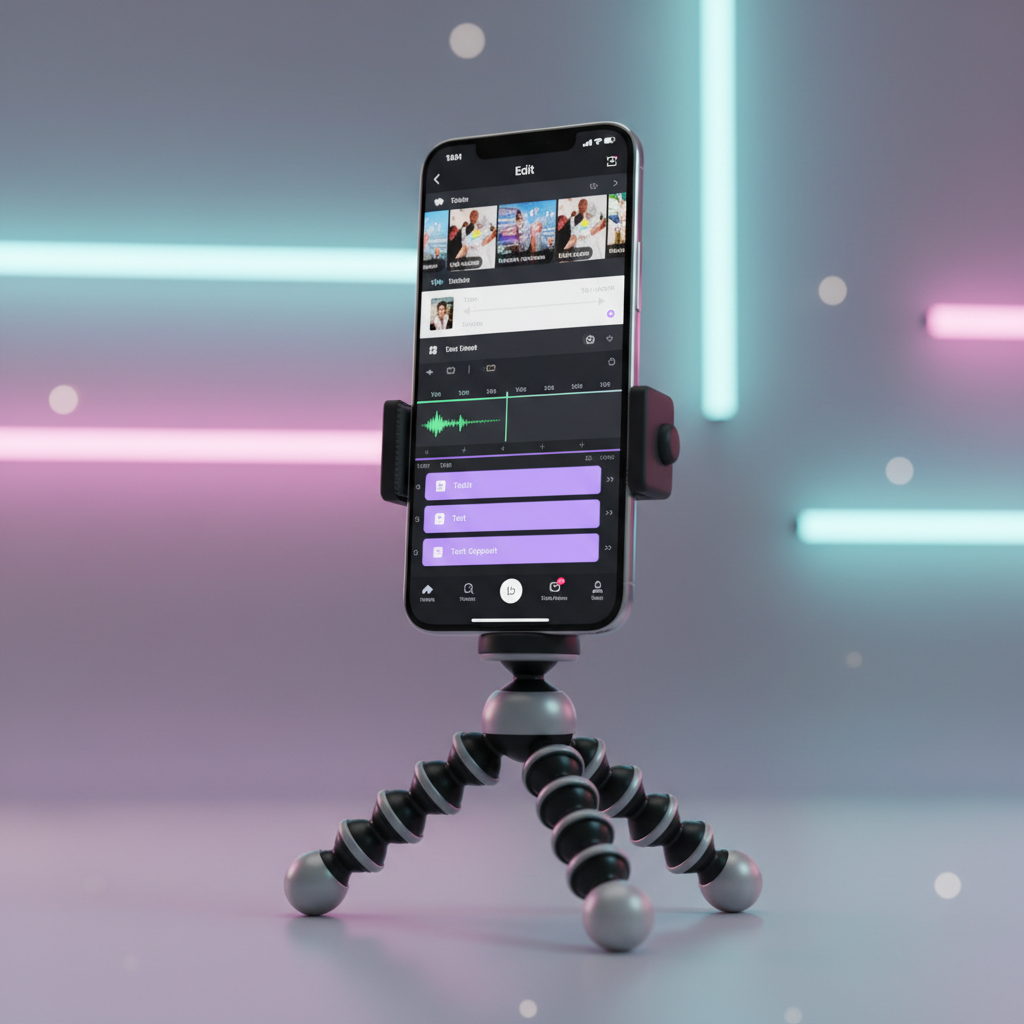
Producing videos on TikTok that actually reach an audience requires a specific technical setup and an understanding of the platform's compression algorithms. Most creators struggle with low views because their videos lack the structural clarity and visual quality that the recommendation engine prioritizes. A video that looks amateurish or fails to follow vertical-first principles is often flagged as low-quality content, limiting its distribution.
To succeed, you must move beyond basic recording and start treating your mobile device as a professional production studio. This involves optimizing your resolution settings, mastering the native multi-track editor, and using strategic keyword placement within your captions and on-screen text. This guide covers the operational steps needed to create, edit, and publish videos that meet the highest technical standards of the platform.
1. Setting Up Your Device for High-Definition TikTok Recording
The first point of failure for most creators is the camera settings. If you record in the wrong aspect ratio or use poor lighting, no amount of editing can save the video. High-definition (HD) clarity is a baseline requirement for any video hoping to land on the For You Page (FYP).
- Aspect Ratio: Always record in 9:16 vertical mode. Horizontal videos forced into a vertical frame result in black bars, which trigger the algorithm to categorize the content as unoptimized for mobile.
- Resolution and FPS: Set your camera to 1080p at 30 or 60 Frames Per Second (FPS). While 4K is an option on modern phones, TikTok downscales 4K files, which can sometimes lead to artifacts. 1080p provides the cleanest native upload.
- Smart HDR and Lens Cleaning: Disable "High Efficiency" (HEVC) formats in your phone settings if you plan to edit on a PC, as it can cause compatibility issues. More importantly, always wipe your lens; a smudge of fingerprint oil is the most common cause of "hazy" or "blurry" TikTok videos.
- Lighting Positioning: Position yourself facing a primary light source. Avoid "backlighting" where the light is behind you, as this silences your facial expressions and makes the video look low-budget.
2. Using the TikTok Camera Interface and Recording Modes
Once your device is calibrated, you need to navigate the capture interface. TikTok provides several recording modes that dictate how the algorithm indexes your content.
- Select Your Time Limit: Choose between 15 seconds, 60 seconds, or 10 minutes. For tutorials and educational content, the 60-second or 10-minute modes offer the most flexibility.
- The Timer Tool: Use the 3-second or 10-second timer to record hands-free. This allows you to position your hands and body correctly before the recording starts, eliminating awkward "reaching for the phone" shots.
- Speed Control: The speed toggle (0.3x to 3x) is essential for transitions. Recording at 2x speed while moving the camera quickly creates a smooth "teleportation" effect when played back at normal speed.
- Filters and Beauty Mode: Use these sparingly. Over-filtered videos often look "artificial" and can negatively impact your Trustworthiness (EEAT) if you are in a niche like skincare or professional consulting.
3. Mastering the In-App Multi-Track Editing Suite
Editing is where you remove the friction that causes viewers to scroll away. The native editor now functions similarly to professional desktop software, allowing for precise cuts and layering.
- Splitting and Trimming: Every millisecond of silence must be removed. Use the "Split" tool to cut out "ums," "ahs," or long pauses between sentences. This creates a "jump-cut" style that keeps the audience engaged.
- Adjusting Clips: If you have recorded multiple segments, you can drag and drop them to reorder the narrative. The most important information should always be in the first three seconds of the first clip.
- Transitions: Tap the intersection between two clips to add a transition. "Zoom in" or "Blackout" transitions help maintain visual momentum, but avoid overusing "Fancy" effects that distract from the message.
4. How to Add Text Overlays and Captions for SEO
TikTok is increasingly functioning as a search engine. The text you put on the screen is "read" by the AI to determine the topic of your video.
- The Hook Text: Place a bold text box in the upper third of the screen within the first second. Use a primary keyword like "how to make videos" to immediately tell the viewer—and the algorithm—what the content is about.
- Safe Zones: Ensure your text is not blocked by the user interface. Avoid the right side (where icons live) and the bottom (where the caption and sound title are located).
- Auto-Captions: Always enable the auto-captioning feature. It increases accessibility and ensures that users watching with sound off can still follow your expertise. Manually edit any technical terms or brand names that the AI misidentifies.
5. Strategic Audio Selection and Volume Mixing
Audio is not just background noise; it is a categorical signal. Using the right sound can place your video in front of the right sub-culture.
- Commercial Library vs. Trending Sounds: If you are a business, stay within the "Commercial Music Library" to avoid copyright strikes. If you are an individual, use trending sounds at low volume (5%–10%) to leverage current trends without overpowering your voice.
- Voiceover Tool: If you are explaining a process, record the video first and use the "Voiceover" tool in the editor. This allows you to record high-quality audio in a quiet environment after you’ve already captured the visual action.
- Noise Reduction: Use the built-in AI noise reduction tool to remove background hums or wind noise. Clear audio is a hallmark of "Authoritative" content.
6. Technical Solutions for Content Repurposing and Archiving
Professional creators rarely let their content live on just one platform. However, the native TikTok watermark is a significant hurdle when you want to use your video as a portfolio piece or for a professional website.
To maintain a clean digital presence, many users can download TikTok videos without watermark for high-quality archiving. Using a platform like Savettok.org, which is FREE, FAST, and ONLINE, allows you to save the raw HD file of your creation. This is particularly useful for building a "swipe file" of your best work or for cross-posting to platforms that penalize content with visible watermarks from competitors. Keeping a clean library of your videos is a standard practice for maintaining long-term control over your intellectual property.
7. Keyword Optimization in Descriptions and Hashtags
The description box is your final opportunity to tell the search engine exactly how to rank your video. It should be treated like a miniature SEO meta-description.
- The First Sentence: Include your main keyword early. For example: "In this guide, I show you how to make videos on tiktok that look professional and clear."
- Hashtag Strategy: Use 3 to 5 targeted hashtags. Avoid generic tags like #FYP or #Viral. Instead, use specific niche tags such as #VideoEditing, #ContentStrategy, or #MobileCinematography.
- Video Cover (Thumbnail): Select a frame from the video and add a title to the cover. This makes your profile grid look organized and allows new visitors to find specific information quickly.
8. Managing Video Retention and Completion Rates
The algorithm’s primary metric for success is the "Completion Rate." If people watch your video to the end, TikTok will show it to more people.
- The 3-Second Rule: You must address the user's pain point immediately. If you are showing a fix, show the "Before" result in the first frame.
- Looping Techniques: If you can end your video exactly where the audio starts, you can trigger a "Loop." The algorithm sees a second watch as a massive signal of quality.
- Pacing: Use "B-roll" (secondary footage) to illustrate what you are saying. Seeing a talking head for 60 seconds straight is visually tiring; showing the product or the steps being taken keeps the visual data fresh.
9. Leveraging Advanced Effects and AI Editing Tools
TikTok’s 2026 update includes several AI-driven tools that can significantly reduce the technical barrier to entry for new creators.
- AI Enhance: This tool automatically adjusts exposure, contrast, and color balance. It is a quick fix for videos shot in suboptimal conditions.
- Green Screen: Use the Green Screen effect to overlay yourself on top of screenshots or other videos. This is the best way to provide commentary or "react" to industry news while maintaining your face as the authority.
- Teleprompter: For long-form educational content, the built-in teleprompter allows you to read a script while looking directly into the lens. This ensures you don't miss key technical points and maintains a professional "Expertise" level.
10. Real Use-Case: The Educational "How-to" Workflow
Consider a professional chef who wants to demonstrate a complex knife technique.
- The Recording: They set up a tripod overlooking the cutting board, ensuring the light hits the knife clearly (HD/60FPS).
- The Edit: They use the "Split" tool to remove the seconds where they are adjusting the ingredients. They speed up the "chopping" section by 1.5x to keep the pace high.
- The SEO: They add on-screen text: "How to Dice Onions Like a Pro." They use auto-captions to ensure the measurements are readable.
- The Result: The video provides immediate value, ranks in the "Cooking Tips" search, and establishes the chef as a trustworthy source of information.
11. Practical Steps for Publishing and Engagement
The work doesn't end once you hit "Post." The first hour of a video’s life determines its long-term trajectory.
- Check Privacy Settings: Ensure "Allow High-Quality Upload" is toggled ON in the final posting menu.
- Monitor the First Comments: If users ask questions, reply with a video comment. This creates a secondary piece of content and signals to the algorithm that the community is finding your expertise valuable.
- Share to Stories: Reposting your video to your own TikTok Story can give it the initial 100–200 views needed to kickstart the FYP evaluation process.
12. Troubleshooting Common Upload and Quality Issues
If your videos are consistently getting 0 views or looking low-quality, there are usually three technical culprits.
- Account Health: Check your "Account Status" in settings. If you have multiple copyright strikes or community guideline violations, your content will be suppressed.
- Unoriginal Content: If you are re-uploading content from other sources without significant editing, the "Originality" filter will flag it, and the video will never reach the FYP.
- Internet Speed: Uploading on a weak Wi-Fi connection can cause the file to compress more aggressively, leading to pixelation. Always upload on a stable 5G or high-speed fiber connection.
13. Summary: The Technical Roadmap to TikTok Success
Successful video creation on TikTok is a balance of high-quality hardware utilization and precise software execution. By standardizing your recording specs to 1080p/60FPS, mastering the multi-track editor for high-retention pacing, and utilizing SEO-friendly text overlays, you remove the barriers that prevent content from ranking.
- Clarity: Use 9:16 vertical HD settings.
- Retention: Edit out every second of unnecessary footage.
- Discovery: Use keywords in text, speech, and descriptions.
- Professionalism: Maintain a clean archive of your work without watermarks.
As the platform moves further toward search-oriented content, the creators who focus on technical excellence and information density will be the ones who maintain a dominant presence on the For You Page.
Frequently Asked Questions
Why does TikTok lower my video quality after I upload?
TikTok compresses videos to save bandwidth. To minimize this, ensure you record in 1080p rather than 4K, and always toggle the "Allow High-Quality Uploads" switch in the posting menu. Uploading over a strong Wi-Fi connection also prevents aggressive compression.
How do I make my TikTok videos go viral?
Virality is largely determined by "Watch Time" and "Engagement Rate." You must have a strong hook in the first 3 seconds and provide enough value to encourage users to share or comment. Following current trends while adding a unique, expert perspective is the most reliable path to the FYP.
What is the best time to post on TikTok?
While it varies by region, posting when your specific audience is most active is key. Check your "Analytics" tab under "Follower Activity." Generally, mid-morning and late evening on weekdays are high-traffic periods.
Can I edit my TikTok videos after posting?
No. Once a video is public, you cannot change the footage, captions, or tags. If you find an error, you must delete the video and re-upload a corrected version. This is why many creators save a clean copy of their work before posting.
Do I need a professional camera for TikTok?
No. Most modern smartphones have cameras that are more than capable of producing HD TikTok content. Lighting and clear audio are far more important than the specific model of camera you use.
Why is my video stuck at 200 views?
This is often called the "200-view jail." It means TikTok showed your video to an initial test group, but they didn't watch it long enough or engage with it. To break out, focus on improving your "Hook" and ensuring your content is relevant to a specific niche.


